Introduction: Your Password Alone Is No Longer Enough
There is a quiet digital war happening right now and most people don’t know they’re already on the battlefield. Every single day, billions of login attempts are made by automated bots cycling through stolen usernames and passwords, hoping one combination opens a door. According to Akamai’s 2024 Securing Apps report, there are over 26 billion credential-stuffing attempts every single month globally. I want you to know that number is not a typo. Yes, cybercriminals aren’t guessing anymore, they’re using your already-leaked data from previous breaches to walk straight into your accounts.
Do you know the frightening reality is that your password, no matter how clever you think it is may already be circulating on a dark web forum. In 2025, NordPass and Cloudflare data showed that 62% of Americans still reuse passwords across multiple accounts, and 52% of login attempts involve leaked credentials. That means more than half of all login activity on the web involves passwords that are already compromised. Frankly, it is a crisis hiding in plain sight.
This is exactly where Two-Factor Authentication (2FA) becomes your most reliable digital bodyguard. It doesn’t matter if a hacker gets hold of your password, but with that second factor of verification, they’re locked out. In this guide, you’ll learn exactly what Two-Factor Authentication (2FA) is, the different types available, how to enable it on every major account you own, and the best practices to keep it working flawlessly. Let’s lock things down.
What Is Two-Factor Authentication (2FA) and Why Does It Matter?
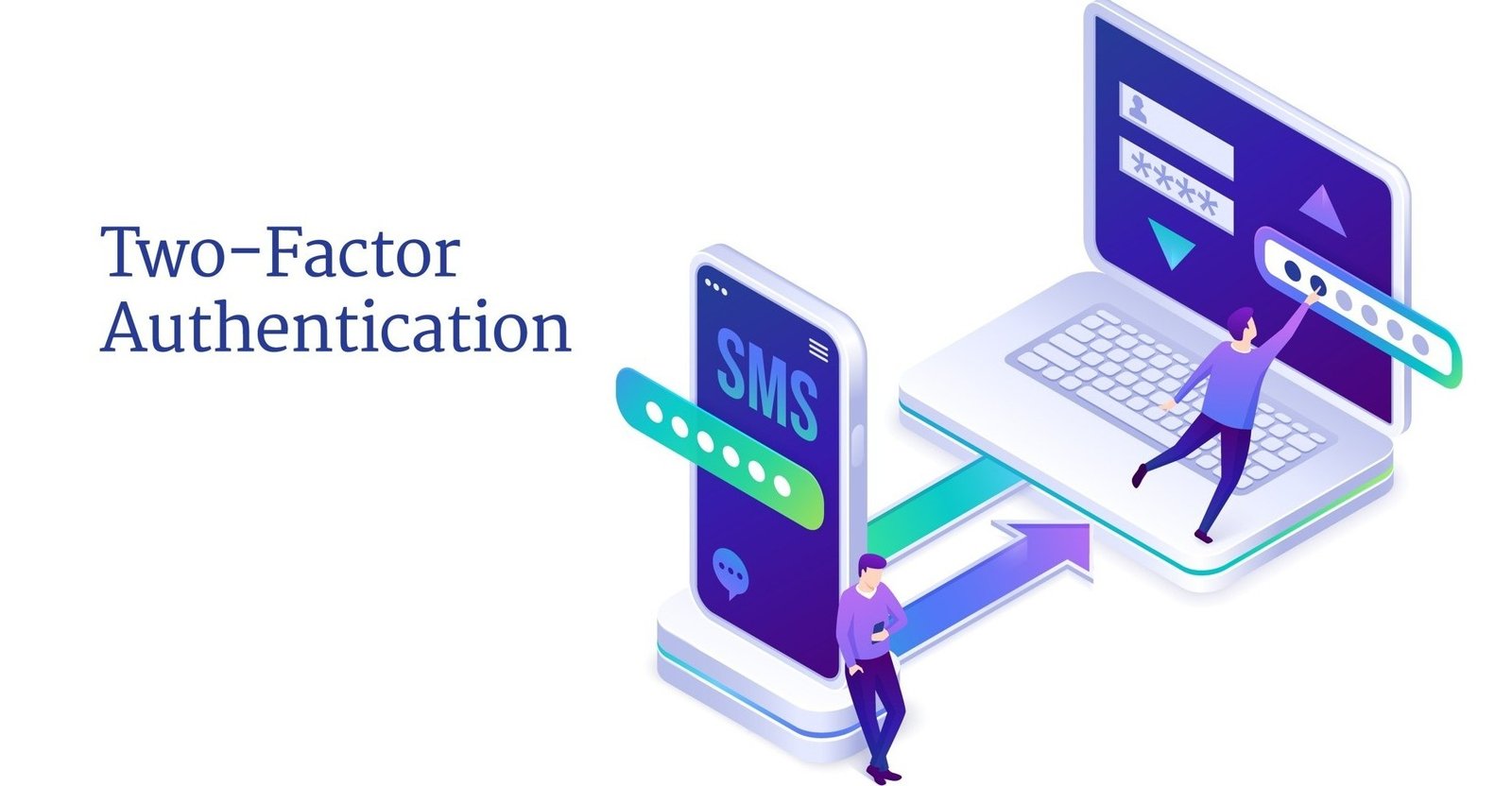
Two-Factor Authentication (2FA) is a security method that requires you to verify your identity using two separate, independent factors before granting access to your account. Think of it like a safe-deposit box at a bank where you need both a key and a PIN. And neither one alone is enough for authorisation.
According to NIST’s Digital Identity Guidelines, the three recognized authentication factor categories are:
- Something you know: a password, PIN, or passphrase.
- Something you have: a smartphone with an authenticator app, a hardware security key, or a one-time code.
- Something you are: biometrics like a fingerprint or facial recognition.
Two-Factor Authentication (2FA) combines any two of these categories. The most common pairing is your password (something you know) and a time-sensitive code from an app on your phone (something you have).
Why does this matter so much right now? Verizon’s 2025 Data Breach Investigations Report found that 88% of basic web application attacks involve stolen credentials. Meanwhile, the FBI’s 2024 Internet Crime Report documented 859,532 cybercrime complaints in the U.S. alone, with losses exceeding $16 billion, that is, a 33% increase from 2023. Account takeover fraud was the single largest driver of those losses.
The good news? Two-Factor Authentication (2FA) directly blocks the vast majority of these attacks. CISA (the Cybersecurity and Infrastructure Security Agency) puts it plainly: “Any form of MFA is better than no MFA.” Enabling Two-Factor Authentication (2FA) across your accounts is one of the highest-return security steps you can take, and it costs absolutely nothing for most accounts.
The Different Types of Two-Factor Authentication (2FA): Which One Is Right for You?
There is something that worths mentioning, not all Two-Factor Authentication (2FA) methods are created equal. So, here’s a breakdown of the most common types and how they stack up:
1. SMS/Text Message Codes
When you log in, a one-time code is sent to your phone via text message. It’s better than no 2FA at all, but it carries a real vulnerability too which is SIM-swapping attacks, where a fraudster tricks your mobile carrier into transferring your phone number to a SIM card they control, letting them intercept your codes. According to DeepStrike, the FBI tracked nearly $26 million in losses from SIM-swapping in 2024 alone. So, use SMS 2FA only as a last resort.
2. Authenticator Apps (TOTP)
Apps like Google Authenticator, Authy, and Microsoft Authenticator generate Time-Based One-Time Passwords (TOTP); 6-digit codes that refresh every 30 seconds. These codes are generated locally on your device, meaning no network is needed and no SMS can be intercepted. This is the recommended method for most everyday users. It’s free, fast and significantly more secure than SMS.
3. Hardware Security Keys (FIDO2/WebAuthn)
Using a physical USB or NFC device like a YubiKey provides the gold standard in Two-Factor Authentication (2FA). You plug the key in or tap it to your phone, and the site cryptographically verifies it. CISA specifically recommends FIDO2/WebAuthn-based methods as the only widely available phishing-resistant authentication. These are ideal for high-value accounts like email, banking, admin accounts.
4. Push Notifications (App-Based Approval)
Apps like Duo Security or Microsoft Authenticator can send a push notification to your phone asking you to approve a login. It’s convenient, but watch out for push bombing, also called MFA fatigue, where attackers spam approval requests hoping you’ll tap “Approve” just to make the notifications stop.
5. Biometric Authentication
Fingerprint and facial recognition can serve as the second factor when paired with an authenticator app or hardware key. On their own, biometrics are convenient but not a standalone second factor in most frameworks.
A Quick Reference Table of Two-Factor Authentication (2FA) Methods Compared
| 2FA Method | Security Level | Phishing-Resistant? | Cost | Best For |
|---|---|---|---|---|
| SMS Text Code | Low-Medium | No | Free | Low-stakes accounts only |
| Email Code | Low-Medium | No | Free | Low-stakes accounts only |
| Authenticator App (TOTP) | Medium-High | Partially | Free | Most personal accounts |
| Push Notification | Medium | No | Free–Paid | Corporate/workplace accounts |
| Hardware Security Key | Very High | Yes | $25 – $70 | Banking, email, admin accounts |
| Biometric (paired) | High | Yes (when paired) | Built into device | Modern smartphones & laptops |
How to Enable Two-Factor Authentication (2FA) on Your Most Important Accounts
The smartest place to start is with your email account, because whoever controls your email can reset every other account you own. From there, move systematically through your financial, social media and work accounts.
Setting Up Two-Factor Authentication (2FA) on Google/Gmail
- Sign in to your Google account and go to myaccount.google.com
- Click on Security in the left-hand menu.
- Under “How you sign in to Google,” select 2-Step Verification.
- Click Get Started and follow the prompts.
- Choose your preferred second factor such as Google Authenticator (recommended), a hardware security key, or SMS as a backup.
- Save your backup codes in a secure location, like a password manager.
Google also supports Passkeys – a newer, phishing-resistant login method worth enabling as well.
Setting Up Two-Factor Authentication (2FA) on Apple ID
- Go to Settings on your iPhone or iPad.
- Tap your name at the top, then select Sign-In & Security.
- Tap Two-Factor Authentication and follow the on-screen steps.
- Verify your trusted phone number to receive verification codes.
Apple’s Two-Factor Authentication (2FA) is built into iOS and macOS and uses trusted devices to generate 6-digit codes.
Setting Up Two-Factor Authentication (2FA) on Facebook/Instagram
For Facebook (and connected Instagram accounts):
- Tap the menu icon → Settings & Privacy → Settings.
- In the Accounts Center, tap Password and Security.
- Tap Two-Factor Authentication and select your account.
- Choose an authentication method – Malwarebytes recommends using an authenticator app like Google Authenticator or Authy over SMS.
- Complete the setup and save your recovery codes.
Setting Up Two-Factor Authentication (2FA) on Microsoft/Outlook
- Go to account.microsoft.com and sign in.
- Click Security → Advanced Security Options.
- Under “Two-step verification,” select Turn On.
- Follow the wizard and download the Microsoft Authenticator app for the smoothest experience.
- Generate and safely store your recovery code.
Setting Up Two-Factor Authentication (2FA) on Banking and Financial Apps
Most major banks including Chase, Bank of America, Wells Fargo, and Barclays support 2FA, typically via SMS or an authenticator app. Head to your bank’s Security Settings or Profile & Settings area and look for “Two-Step Verification” or “Extra Security.” If your bank only offers SMS, still enable it, because it’s better than nothing, but consider pairing it with other precautions.
You can also read our guide on how to protect yourself from mobile banking malware to understand the full threat landscape around financial apps.
Best Practices for Using Two-Factor Authentication (2FA) Effectively
Enabling Two-Factor Authentication (2FA) is just step one and using it wisely is step two. So, here are the most important best practices to get the most protection from your 2FA setup:
- Use an authenticator app over SMS wherever possible: This is because Apps generate codes locally and can’t be SIM-swapped.
- Register at least two 2FA methods per account: If your phone is lost, you need a backup, whether that’s a spare hardware key or saved recovery codes.
- Store your backup/recovery codes offline: Print them out or keep them in a reputable password manager, but never in your email inbox or an unencrypted notes app.
- Audit your trusted devices regularly: Log in to your account security settings every few months and revoke access for any device you don’t recognize.
- Never approve a push notification you didn’t initiate: If your phone suddenly shows an unexpected 2FA request, that’s a red flag, which means someone has your password. Change it immediately.
- Prioritize your email account first: It’s the master key to everything else.
- Enable 2FA on work accounts too: Business accounts are prime targets for attackers. If you’ve ever wondered why companies get breached, it’s often because someone skipped this step.
- Be extra cautious with SMS 2FA for financial accounts: SIM-swap attacks target people with high-value accounts. So, wherever your bank allows an authenticator app, use it.
Common Two-Factor Authentication (2FA) Mistakes to Avoid
Even security-conscious people make these errors. Watch out for:
- Skipping 2FA on ‘less important’ accounts: Attackers chain accounts together, meaning your streaming login can lead to your email and also lead to your bank.
- Screenshot-ing your QR setup code: That QR code is your secret. If it’s in your photo gallery and your phone is compromised, so is your 2FA.
- Using the same phone number for SMS 2FA everywhere: If that number gets SIM-swapped, every account linked to it falls like dominoes.
- Ignoring recovery options: Setting up 2FA without planning for the “I lost my phone” scenario is a lockout waiting to happen.
- Approving push notifications without checking: Always verify the details on the notification (location, device, time) match your actual login attempt.
This also connects to broader identity protection habits. If you haven’t already, check out our deep-dive on how identity theft happens and critical settings to prevent it, because 2FA and identity protection work hand in hand.
What If You Get Locked Out? Two-Factor Authentication (2FA) Recovery Tips
Getting locked out of your own account after enabling Two-Factor Authentication (2FA) is more common than people think, and it can be a stressful experience. So, here’s how to prepare and recover in such a situation:
Before a lockout:
- Save backup/recovery codes as soon as 2FA is set up (most services generate 8-10 single-use codes).
- Register a backup phone number or secondary email as a recovery option.
- If using a hardware key, register two keys, that is, a primary and a spare.
After a lockout:
- Try your backup codes first because they’re your first line of recovery.
- Use your registered backup device or recovery email.
- If all else fails, contact the platform’s account recovery process and be prepared to verify your identity with government ID for high-value accounts.
As AccountableHQ notes, once you recover, re-enroll 2FA immediately, register a second factor, and store new backup codes safely. Never skip this step after a recovery event.
Two-Factor Authentication (2FA) and the Bigger Privacy Picture
Enabling Two-Factor Authentication (2FA) on all your accounts is a massive step, but it’s one piece of a larger security puzzle. Attackers are creative and social engineering, deepfakes, and phishing sites can sometimes work around even strong 2FA if users aren’t vigilant. The FBI warned explicitly in 2025 that fraudsters are actively impersonating bank representatives to extract one-time authentication codes over the phone, meaning the human element is still the weakest link.
That’s why 2FA works best when paired with:
- Strong, unique passwords (generated by a password manager) – see our tested 2026 password manager recommendations.
- A healthy skepticism toward unsolicited calls, texts, or emails asking for codes or credentials.
- Regular security checkups – reviewing account activity, connected apps, and trusted devices every quarter.
- Awareness of evolving threats – from SIM-swapping to AI-powered phishing, staying informed is part of your defense strategy.
The layered approach is what truly keeps your digital life secure. One lock is good, but multiple locks on multiple doors is what makes a determined attacker give up and move on.
Conclusion: Enable Two-Factor Authentication (2FA) Today – Not Tomorrow
If there’s one action this article should inspire you to take before you close this tab, it’s this: go enable Two-Factor Authentication (2FA) on your email account right now. Not this weekend, not when you remember – right now. It takes about three minutes, costs nothing, and immediately transforms your account from an easy target into one that will defeat the overwhelming majority of automated attacks.
The statistics are sobering, FBI Internt Crime Report of 2024 said account takeover fraud generated over $16 billion in losses in 2024 alone, and the numbers are climbing year after year. But unlike most cybersecurity threats that feel abstract and out of your control, this one has a direct, practical fix available to every person reading this. Two-Factor Authentication (2FA) is the most effective, most accessible security upgrade you can make today.
Start with your email, then your bank and your social media. Work through it systematically, save your backup codes, and breathe a little easier knowing that even if a hacker gets your password, your accounts remain locked. Your digital life is worth protecting and now you know exactly how to do it.
Have questions about setting up Two-Factor Authentication (2FA) or ran into issues with a specific platform? Drop a comment below or reach out through our Contact page. At CyberPrivacyLab, we’re here to make cybersecurity simple, practical and accessible for everyone.

Ozichukwu Callistus is a cybersecurity professional, researcher, and digital security advocate with hands-on experience in defensive security operations and ethical hacking. He holds the ISC2 Certified in Cybersecurity (CC), Cisco CyberOps Associate certifications, many others and works regularly with tools like Kali Linux, Wireshark, Nmap, and Security Onion. Through CyberPrivacyLab, he shares practical, research-backed guides to help readers understand threats and protect their digital lives.